Legacy BLE Firmware → DuoChord First Migration
Use this procedure to migrate an AVR wireless keyboard whose nRF51822 still runs the legacy Adafruit Bluefruit LE application (referred to below as "legacy BLE firmware") to DuoChord. It updates the keyboard controller (AVR) and wireless module (nRF51822) separately. These are independent firmware artifacts, and the order below is mandatory.
:::danger Do not mix firmware variants
AVR legacy BLE firmware, AVR DuoChord firmware, and the nRF51822 application-only OTA files cannot replace one another. Flashing another PCB variant or reversing the AVR / nRF update order can leave USB or wireless unusable. Stop if you cannot confirm the PCB, wireless backend, or file source.
:::
Download both parts here
- AVR keyboard controller: select your exact PCB and DuoChord backend in the keyboard download table. Pick QMK / VIA or Vial
.hex. - nRF51822 wireless module: download both matched HEX + DAT files below; their filename stems and release IDs must match. In Bluefruit Connect, select HEX under Hex File and DAT under Init File. Do not mix files from different releases.
Requires nRF51822 xxAC with S110 8.0.0 and bootloader 0002 already installed. This application-only release is beta; per-model migration and five-host regression remain incomplete. Do not use SoftDevice, bootloader or combined images as substitutes.
Beta · nRF51822 xxAC / S110 8.0.0 / bootloader 0002 · application only. Download both HEX and DAT from this release and use them together.
SHA-256
d8a925820c9d1c598656e351ca94fea6d912277461bc4321bdea435ad24682feSHA-256
5818594e814b65f9122b9a9a18d1ed6011f7755cfdf9f7dd1b3c18c2468447d8Before you start
- Use the Download Center to confirm the keyboard
model, PCB revision, and
DuoChordfirmware target. - Download the AVR DuoChord firmware that matches this PCB.
- Download the DuoChord nRF application-only OTA files produced by the same
release. Bluefruit Connect's custom firmware screen requires the matching
application
.hexand.dat; never mix files from different builds. - Use a reliable USB data cable and keep the keyboard powered. Keep the phone close to the keyboard during OTA.
- Install Adafruit Bluefruit Connect on the phone: App Store / Google Play, then enable Bluetooth. Airplane Mode disables BLE.
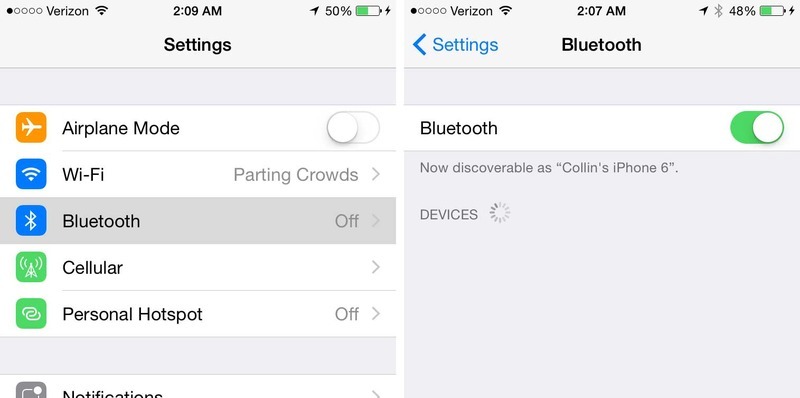
:::note Temporary reference screenshots
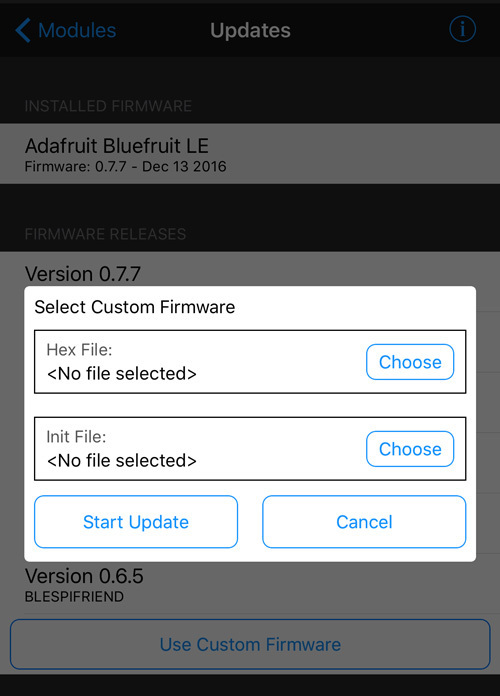
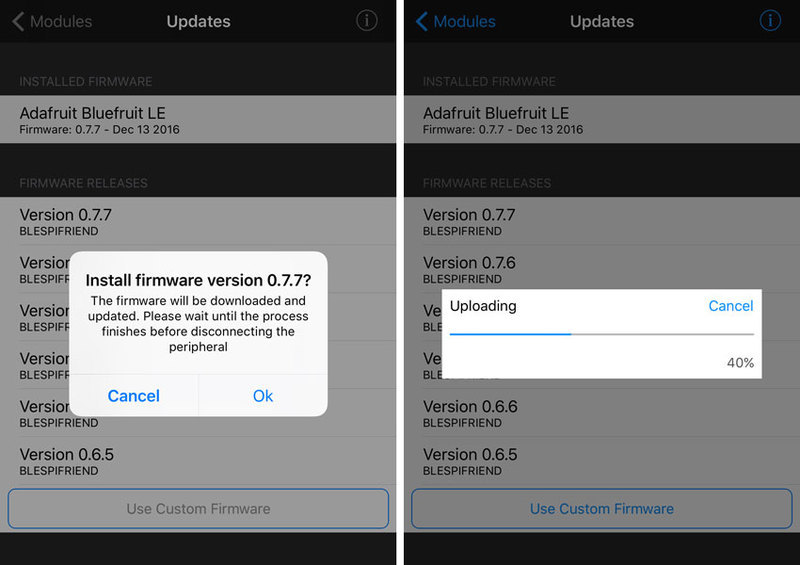
The app screenshots on this page come from the Adafruit Learning System. They show an older UI and are placeholders until this site has its own screenshots. Wording and layout may differ on Android and newer iOS versions.
:::
First-migration procedure
1. Confirm the PCB revision and wireless backend
Confirm that this is a model with AVR legacy BLE firmware / DuoChord backend variants and
check its PCB revision. The target must be the DuoChord firmware for this PCB,
not its legacy BLE firmware variant or firmware for another PCB in the same product line.
2. Flash the AVR DuoChord firmware over USB
Enter the keyboard bootloader over USB and flash the AVR DuoChord firmware that matches the PCB. After flashing, first verify that the keyboard types over USB. The nRF51822 still runs the legacy Adafruit Bluefruit LE application at this point, so the wireless migration is not yet complete.
:::danger Do not update the nRF first
For the first migration, flash the AVR DuoChord firmware before entering
DfuTarg and updating the nRF51822.
:::
3. Trigger nRF51822 DFU
With the AVR DuoChord firmware running, hold both Shift keys and press F twice within 1 second. This confirmation chord asks the wireless module to enter its DFU bootloader.
4. Confirm DfuTarg in Bluefruit Connect
- Open Bluefruit Connect. The app automatically scans for nearby BLE devices.
- Find
DfuTargin the device list. Pull down to scan again if the list has not refreshed. - Tap Connect beside
DfuTarg. If needed, tap the device row to inspect its advertising details. Other unnamed or<Unknown>BLE devices may also appear.
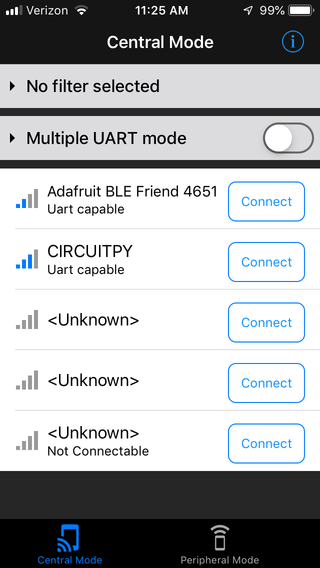
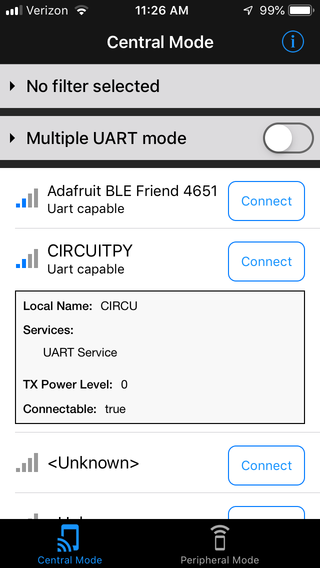
If DfuTarg does not appear, stop. Do not send the update files to the normal
application or any other device in the list.
5. OTA-flash the nRF51822 application-only files
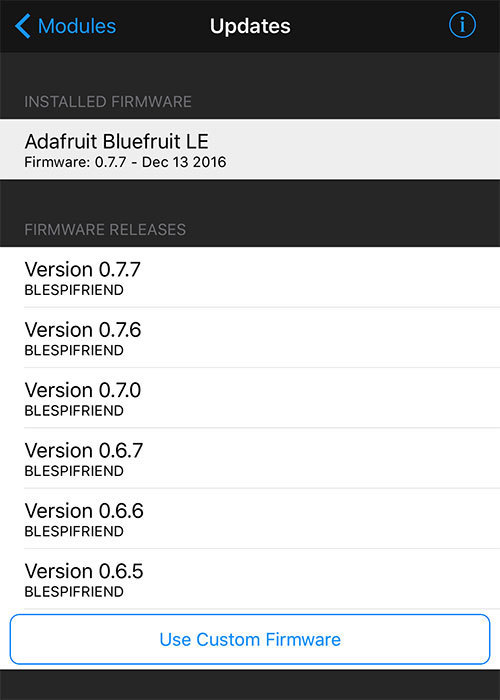
- After connecting to
DfuTarg, open Updates. - Do not choose an Adafruit firmware version from the list. Tap Use Custom Firmware at the bottom.
- For Hex File, choose the DuoChord application
.hexfrom this release. - For Init File, choose the
.datbuilt alongside that.hex. - Tap Start Update, review the confirmation dialog, and start the update.
- Wait for upload, validation, activation, and reboot to finish. Do not close the app, move the phone away, or remove keyboard power. The app disconnects and the wireless module reboots when the update completes.
:::warning Application only
This procedure does not update the SoftDevice, bootloader, UICR, or settings.
If the app reports an init-packet, CRC, or file mismatch, stop and recheck the
.hex and .dat from the same release. Do not force a retry by selecting a
SoftDevice or bootloader update type.
:::
6. Pair again and verify the connection
- Remove the pairing record left by the legacy BLE firmware from the computer, phone, or tablet.
- Select a DuoChord BLE slot (BLE1–BLE5) on the keyboard, then press PAIR.
- Select the keyboard's new advertising name in the host Bluetooth settings and complete pairing.
- Verify wireless typing, key release, and USB / wireless switching.
See AVR DuoChord for slot and pairing operations.
Troubleshooting
DfuTarg does not appear
- Confirm that the AVR now runs the matching PCB's DuoChord build, then hold both Shift keys and double-press F again.
- Confirm phone Bluetooth is on and Airplane Mode is off, then pull down in the Bluefruit Connect device list to scan again.
- Relaunch the app; if necessary, turn phone Bluetooth off and on again.
- If the module still does not advertise
DfuTarg, stop the OTA and do not try unrelated firmware files.
Custom firmware is rejected or the update is interrupted
- Confirm that the
.hexand.datcame from the same DuoChord release. - Keep keyboard power stable and the phone nearby, then enter
DfuTargagain. - Do not choose a version from Adafruit's firmware list or attempt a SoftDevice or bootloader update.
The keyboard is not visible after OTA
An empty DuoChord slot does not automatically open pairing. Select one of BLE1–BLE5, press PAIR, and scan from the host Bluetooth settings. Also remove the old legacy BLE firmware pairing record from the host.